There is a unique icon associated with each subtransaction that indicates the level the subtransaction exists at in relation to the root transaction. The syntax (0-1-0) is how you can follow it.
 ## Header and core metadata
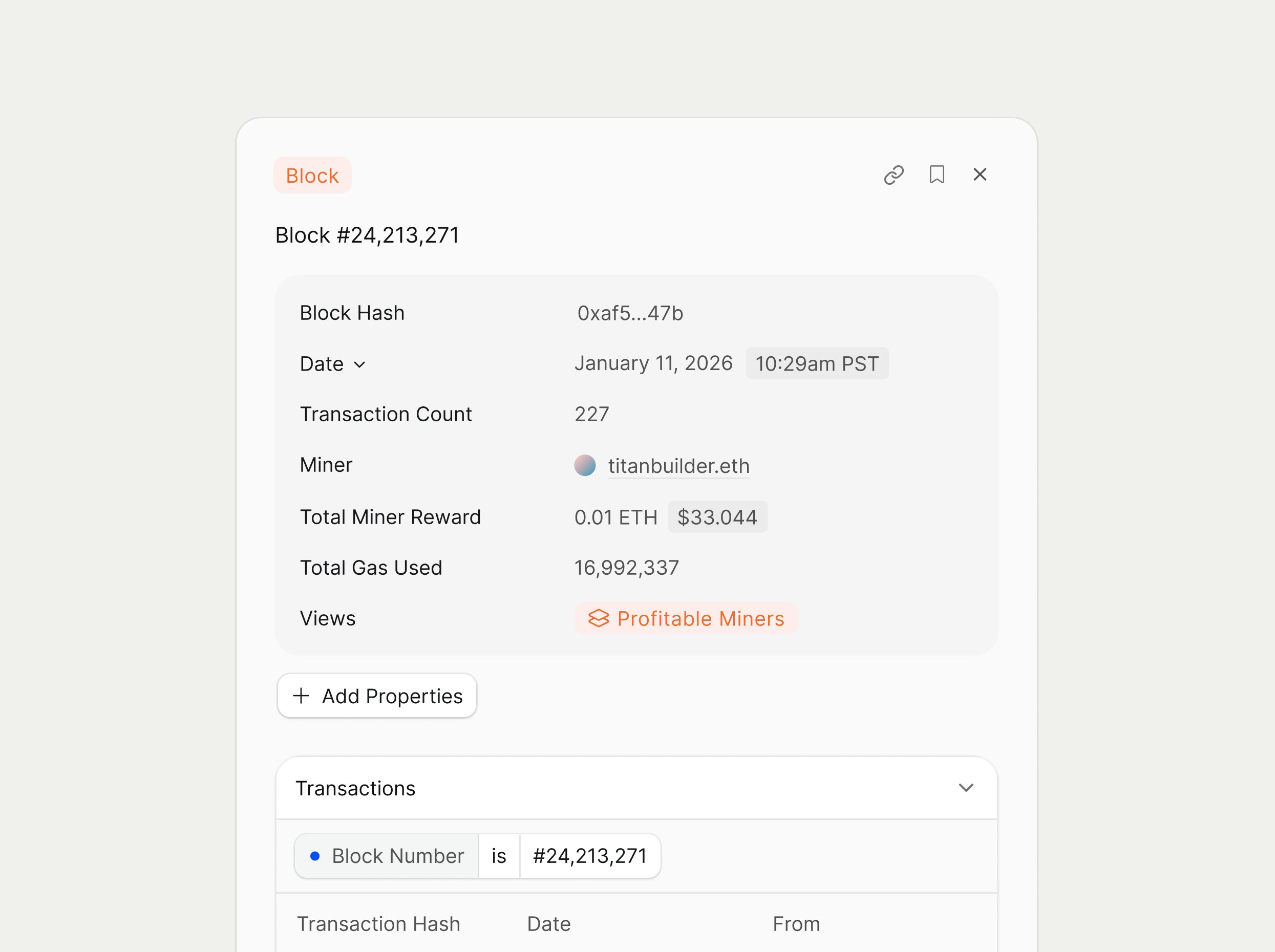
At the top, the page shows the Block label (for example, “Block #24,213,271”) and a badge indicating that this entity is a Block. The properties show metadata such as:
* Block Hash
* Date
* Transaction Count: the total number of transactions included in the block.
Additional fields summarize who produced the block and how much gas was used: Miner, Total Miner Reward (in ETH and USD), Total Gas Used, and Views, which shows how many workspace views reference this block.
You can click the `+ Add Properties` button to see add or remove information from the detail page.
## Transactions section
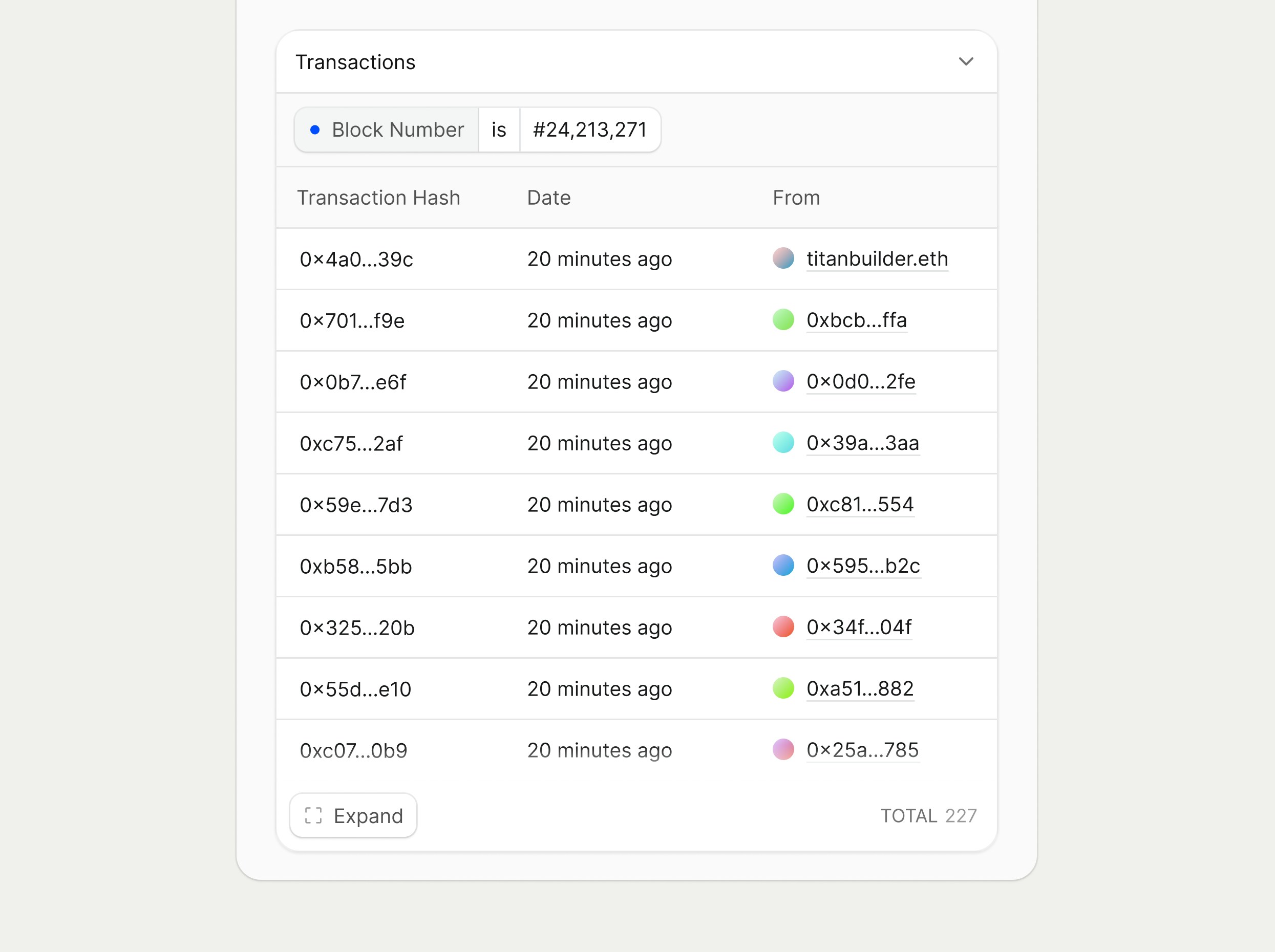
The Transactions section lists every transaction included in the block.
## Header and core metadata
At the top, the page shows the Block label (for example, “Block #24,213,271”) and a badge indicating that this entity is a Block. The properties show metadata such as:
* Block Hash
* Date
* Transaction Count: the total number of transactions included in the block.
Additional fields summarize who produced the block and how much gas was used: Miner, Total Miner Reward (in ETH and USD), Total Gas Used, and Views, which shows how many workspace views reference this block.
You can click the `+ Add Properties` button to see add or remove information from the detail page.
## Transactions section
The Transactions section lists every transaction included in the block.
 ## Navigation and workflows
From a Block Detail Page, you can move directly into related entities by clicking transaction hashes or participant addresses to open their Transaction or Address Detail Pages in the same panel system. This makes it easy to start from an anomalous block (for example, unusual gas usage) and quickly drill into individual transactions, counterparties, and assets involved.
## Navigation and workflows
From a Block Detail Page, you can move directly into related entities by clicking transaction hashes or participant addresses to open their Transaction or Address Detail Pages in the same panel system. This makes it easy to start from an anomalous block (for example, unusual gas usage) and quickly drill into individual transactions, counterparties, and assets involved.