> ## Documentation Index
> Fetch the complete documentation index at: https://docs.rover.inc/llms.txt
> Use this file to discover all available pages before exploring further.

# Tables

## Table type

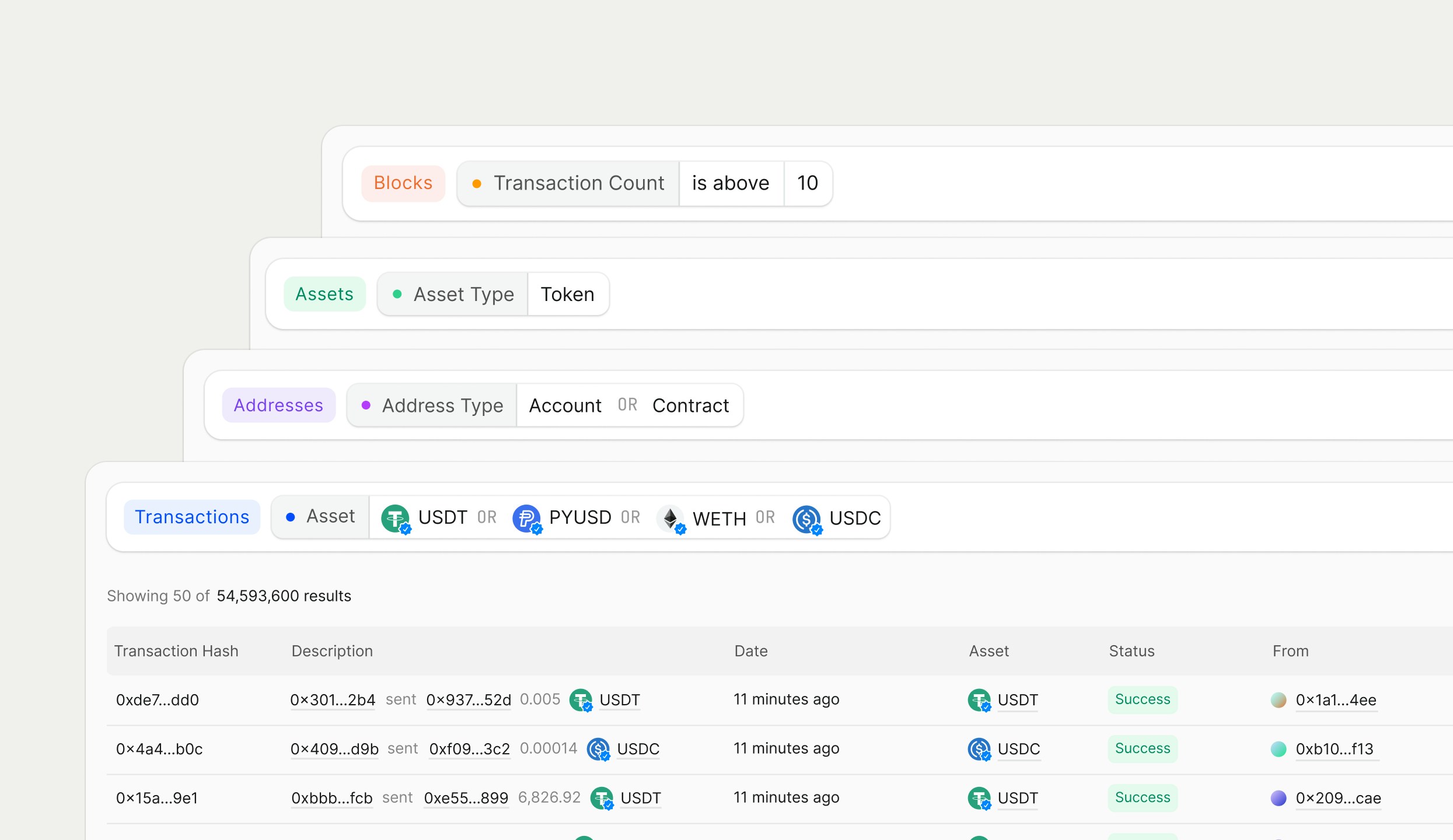
There are four different table types in Rover. Depending on your query, you will get back a specific type of table results:

<div className="mt-4 w-full rounded-lg outline outline-1 outline-offset-[-0.5px] outline-black/[0.08] dark:outline-neutral-100/[0.08] overflow-hidden">
  <div className="bg-neutral-50 dark:bg-neutral-800 border-b border-black/[0.08] dark:border-neutral-100/[0.08] flex">
    <div className="flex-1 px-3 py-1.5 flex items-start md:items-center">
      <span className="text-neutral-600 dark:text-neutral-400 text-[13px] md:text-sm leading-5 tracking-wide">Table</span>
    </div>

    <div className="flex-[2] px-3 py-1.5 border-l border-black/[0.08] dark:border-neutral-100/[0.08] flex items-start md:items-center">
      <span className="text-neutral-600 dark:text-neutral-400 text-[13px] md:text-sm leading-5 tracking-wide">Description</span>
    </div>
  </div>

  <div className="border-b border-black/[0.08] dark:border-neutral-100/[0.08] flex">
    <div className="flex-1 px-3 py-2 flex items-start md:items-center">
      <span className="text-neutral-900 dark:text-neutral-100 text-[13px] md:text-sm font-medium leading-5">Transactions Table</span>
    </div>

    <div className="flex-[2] px-3 py-2 border-l border-black/[0.08] dark:border-neutral-100/[0.08] flex items-start md:items-center">
      <span className="text-neutral-700 dark:text-neutral-300 text-[13px] md:text-sm leading-5">A list of transactions.</span>
    </div>
  </div>

  <div className="border-b border-black/[0.08] dark:border-neutral-100/[0.08] flex">
    <div className="flex-1 px-3 py-2 flex items-start md:items-center">
      <span className="text-neutral-900 dark:text-neutral-100 text-[13px] md:text-sm font-medium leading-5">Addresses Table</span>
    </div>

    <div className="flex-[2] px-3 py-2 border-l border-black/[0.08] dark:border-neutral-100/[0.08] flex items-start md:items-center">
      <span className="text-neutral-700 dark:text-neutral-300 text-[13px] md:text-sm leading-5">A list of addresses, including accounts and smart contracts.</span>
    </div>
  </div>

  <div className="border-b border-black/[0.08] dark:border-neutral-100/[0.08] flex">
    <div className="flex-1 px-3 py-2 flex items-start md:items-center">
      <span className="text-neutral-900 dark:text-neutral-100 text-[13px] md:text-sm font-medium leading-5">Assets Table</span>
    </div>

    <div className="flex-[2] px-3 py-2 border-l border-black/[0.08] dark:border-neutral-100/[0.08] flex items-start md:items-center">
      <span className="text-neutral-700 dark:text-neutral-300 text-[13px] md:text-sm leading-5">A list of assets, including tokens and NFTs.</span>
    </div>
  </div>

  <div className="flex">
    <div className="flex-1 px-3 py-2 flex items-start md:items-center">
      <span className="text-neutral-900 dark:text-neutral-100 text-[13px] md:text-sm font-medium leading-5">Blocks Table</span>
    </div>

    <div className="flex-[2] px-3 py-2 border-l border-black/[0.08] dark:border-neutral-100/[0.08] flex items-start md:items-center">
      <span className="text-neutral-700 dark:text-neutral-300 text-[13px] md:text-sm leading-5">A list of blocks.</span>
    </div>
  </div>
</div>

For each table, the properties change according the the metadata associated with that specific search category.

<img src="https://mintcdn.com/rover-164fa3ac/SL20TMzMc93UeODR/images/table-types.webp?fit=max&auto=format&n=SL20TMzMc93UeODR&q=85&s=a22d19e7bee84991b185d3450d17474e" alt="Table Types" width="2490" height="1440" data-path="images/table-types.webp" />

## Default properties

Each table has different default properties that will appear as columns. All of the tables have the same design—the only difference is the type of data you are looking at.
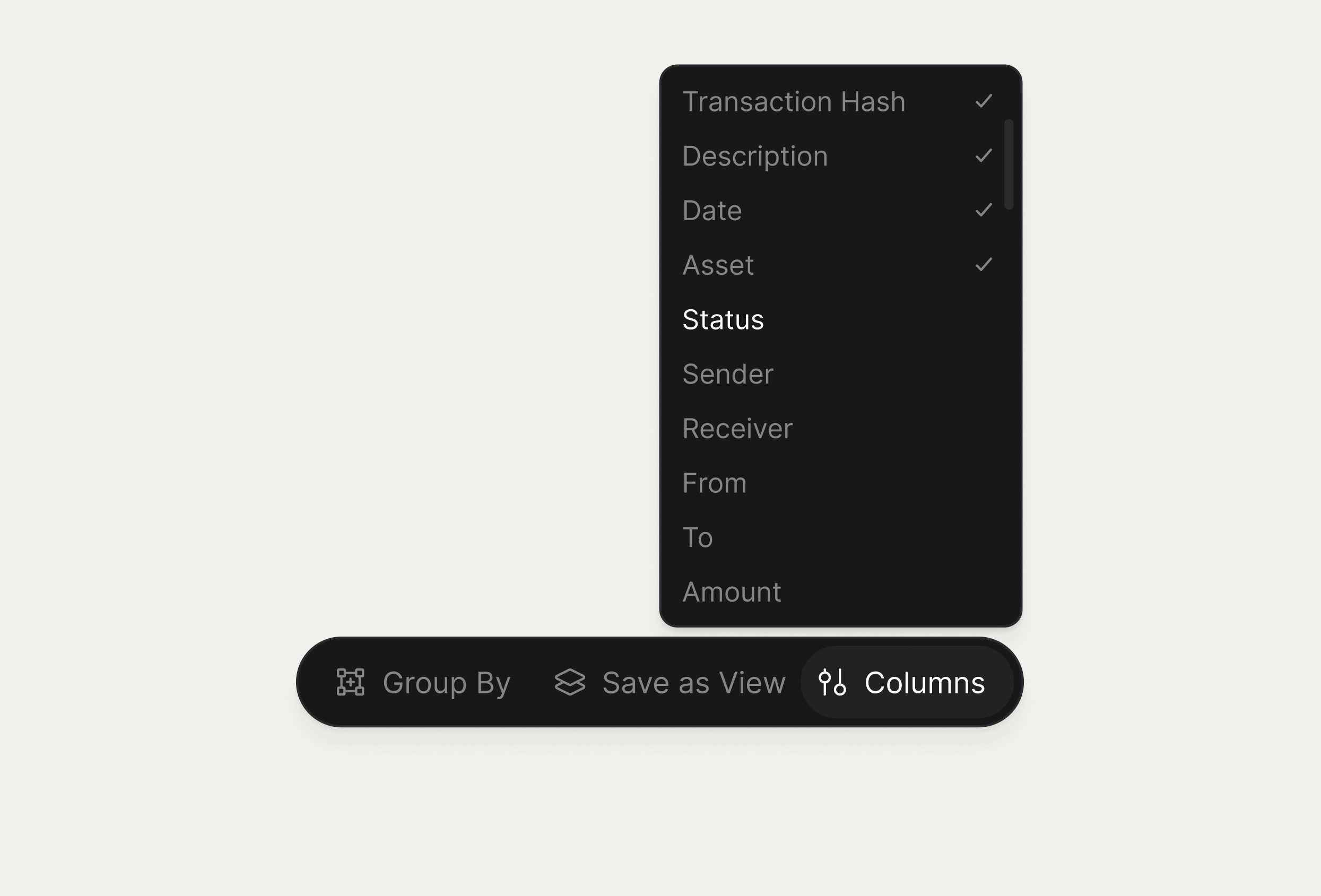
<img src="https://mintcdn.com/rover-164fa3ac/hDKcOFrIaokrsaK0/images/dropdown-columns.webp?fit=max&auto=format&n=hDKcOFrIaokrsaK0&q=85&s=83857c142be3a9bdc921be90c84382fa" alt="Dropdown Columns" width="2490" height="1689" data-path="images/dropdown-columns.webp" />

## Manipulating tables

For any table, you can shrink or grow columns, move columns around, or use the action bar to manipulate the table.

### Sort

Using the action bar, you can use the dropdown menu to sort properties within the table.

<Note>
  Some columns in these tables can't be sorted. If you need a sortable property that isn't available yet, [let us know](mailto:hi@rover.inc).
</Note>

### Add or remove properties

Using the action bar, you can use the dropdown menu to add or remove properties within the table.

### Adjust columns

Drag a column header to rearrange its position in the table. Hover over a header edge to resize the column, or double‑click that edge to automatically fit its contents.
