What is a view?
Views allow you to save searches built in the command menu and reuse them across Rover. The best part is that views dynamically update with the blockchain, so you can set them up once and watch them refresh in real time as new blocks are mined. Views live on the Views page, where they are grouped by search category type (Transaction Views, Address Views, Asset Views, Block Views). Each view is essentially a named, shareable slice of the chain that your entire team can rely on.Creating a view
To create a view, start from a search:- Open the command menu (CMD‑K) and create a search using building blocks.
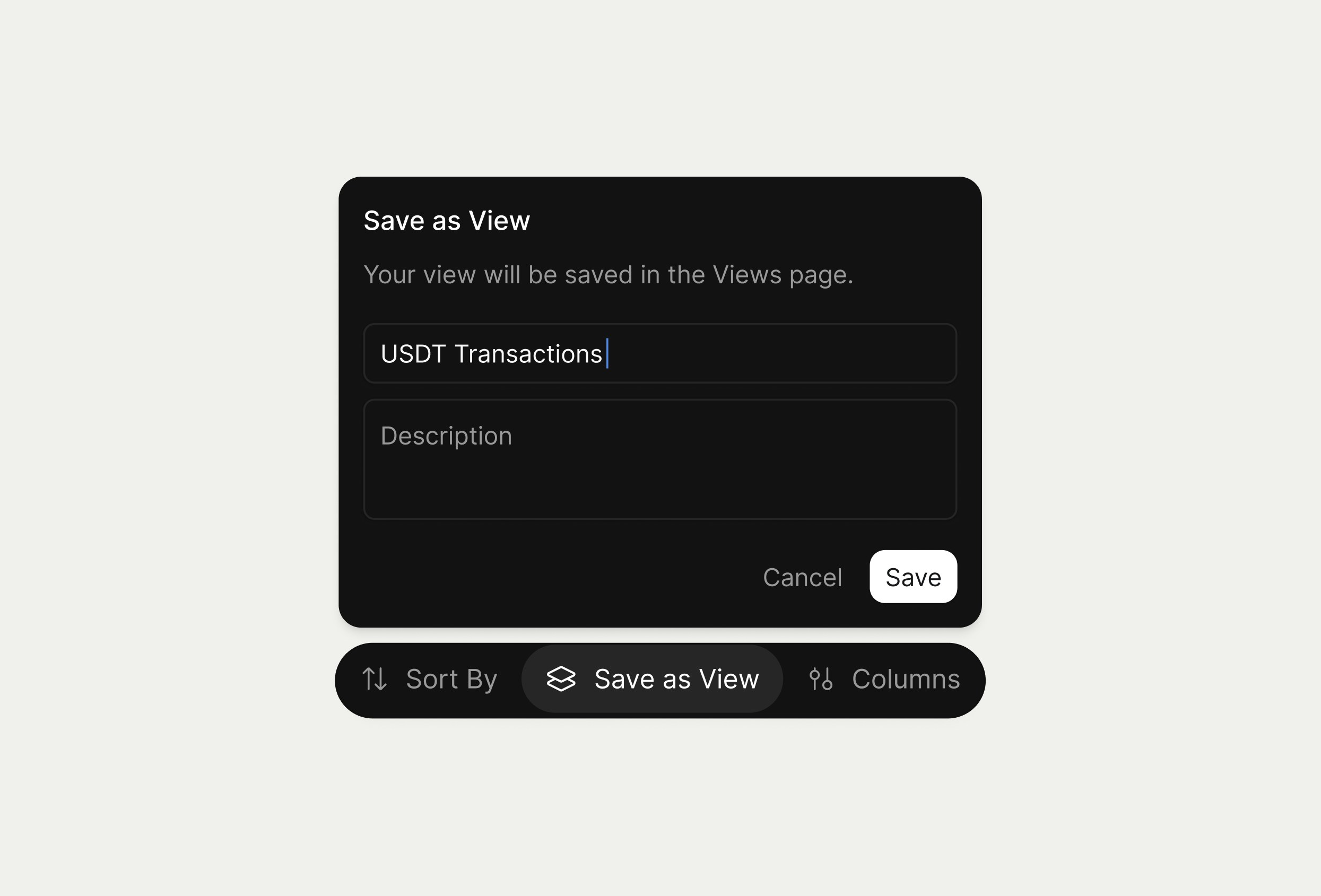
- In the action bar above the results table, click Save as View.
- Give the view a descriptive name, such as “USDT Transactions” or “Engineering Wallets.”
- Click Save to create the view.
Finding and managing views
To find all the views you have created, navigate to the Views page from the sidebar. There, you will see every view organized by category tab, making it easy to jump between transaction, address, asset, and block views. When you hover over a view, quick actions let you rename, duplicate, share, or delete it without leaving the list. Opening a view lets you change filters, building blocks, or columns; Rover will show when there are unsaved changes, and you can update the view configuration so everyone sees the new definition.Views as building blocks
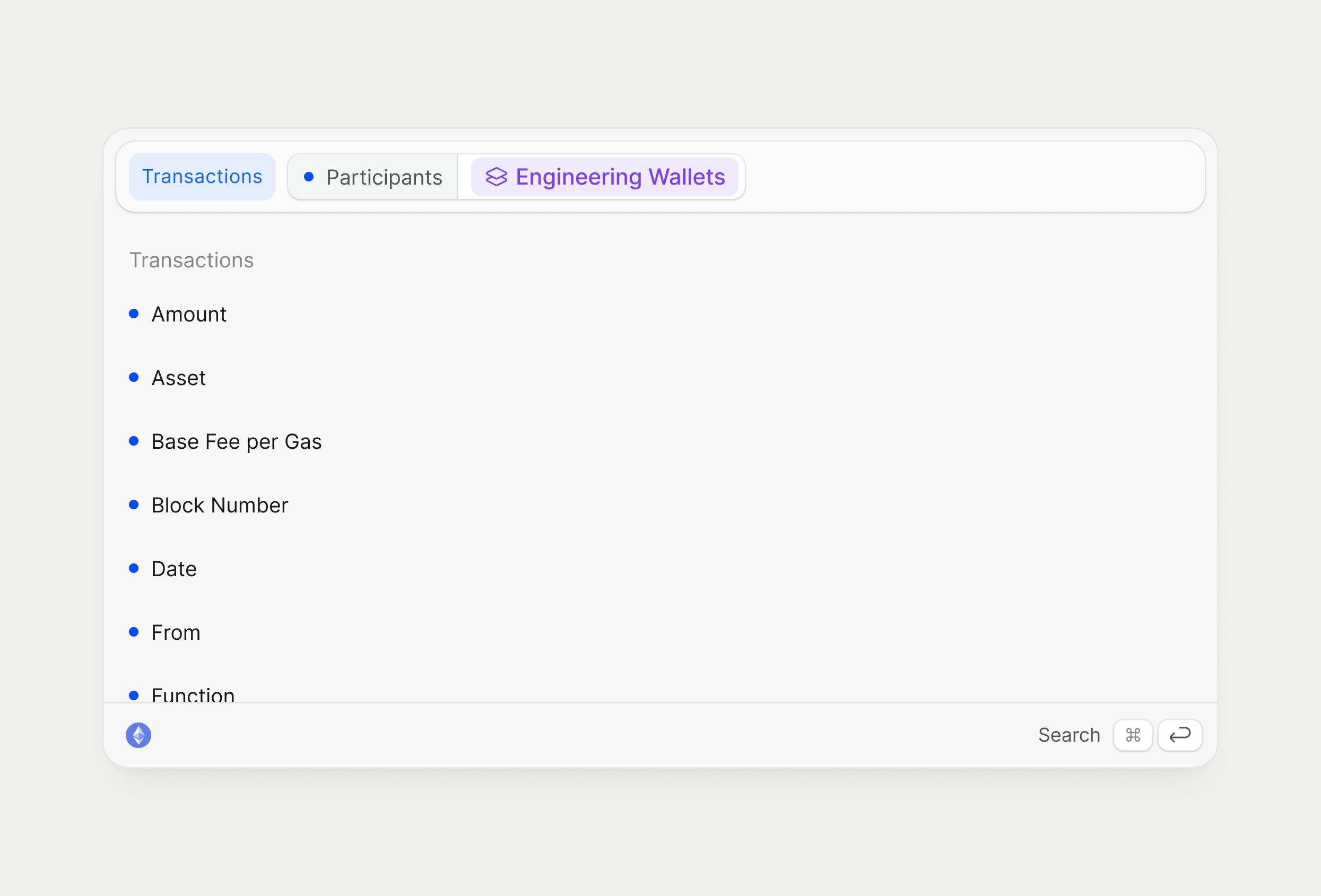
Views can be used as inputs inside other searches, which is where they become especially powerful. For example, suppose you created an Address View called Engineering Wallets and want to find all transactions involving any address in that view.- Start a new Transactions search.
- Add the Participants building block.
- In the Participants input, search for and select the Engineering Wallets view instead of pasting individual addresses.
View types and input compatibility
Views can only be used in building blocks whose input type matches the view’s underlying entity. In the example above, using Engineering Wallets worked because Participants expects addresses as its input and Engineering Wallets is an address view. If a building block expects assets or blocks, only views of that same type can be passed in as inputs. This keeps searches well‑typed and ensures results remain predictable as views evolve.Views in tables
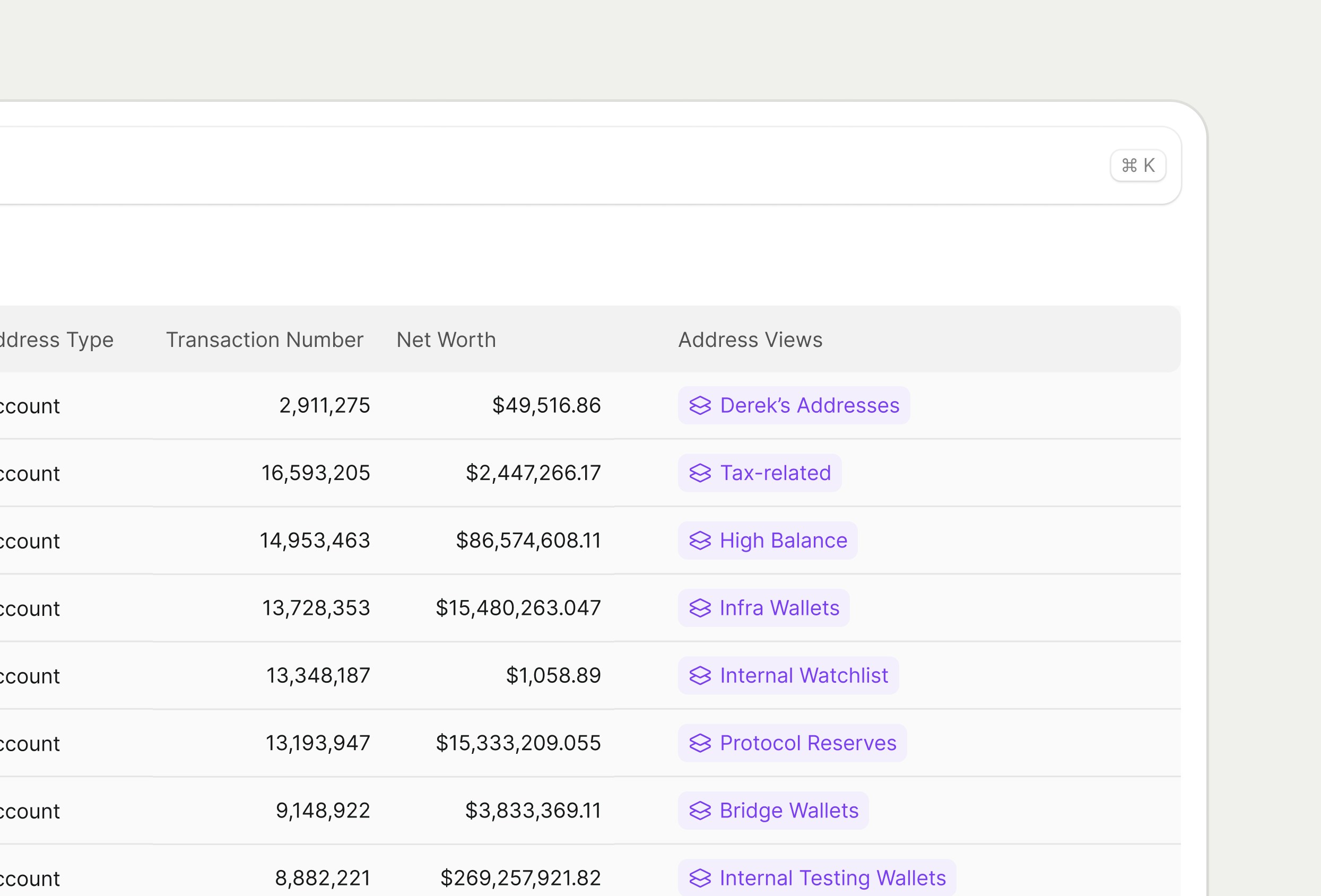
Any time you run a search and view results in a table, you can add View as a column. If a row is part of one or more views you have created, those view names will appear in that column so you can see exactly which saved searches that row belongs to. This makes it easy to answer questions like “which of my monitoring views is this transaction part of?” directly from the table, without leaving your current workflow.