Asset types
There are two types of assets in Rover:- Token: ERC-20 or other fungible tokens
- NFT: Non-fungible tokens (ERC-721, ERC-1155, etc.)
Token Detail Page purpose
The Asset Token Detail Page is designed to answer “what is this token, who holds it, and what is it doing right now?” for any supported asset contract. It gives analysts and operators a single place to inspect token‑level properties while retaining drill‑down links into addresses and transactions.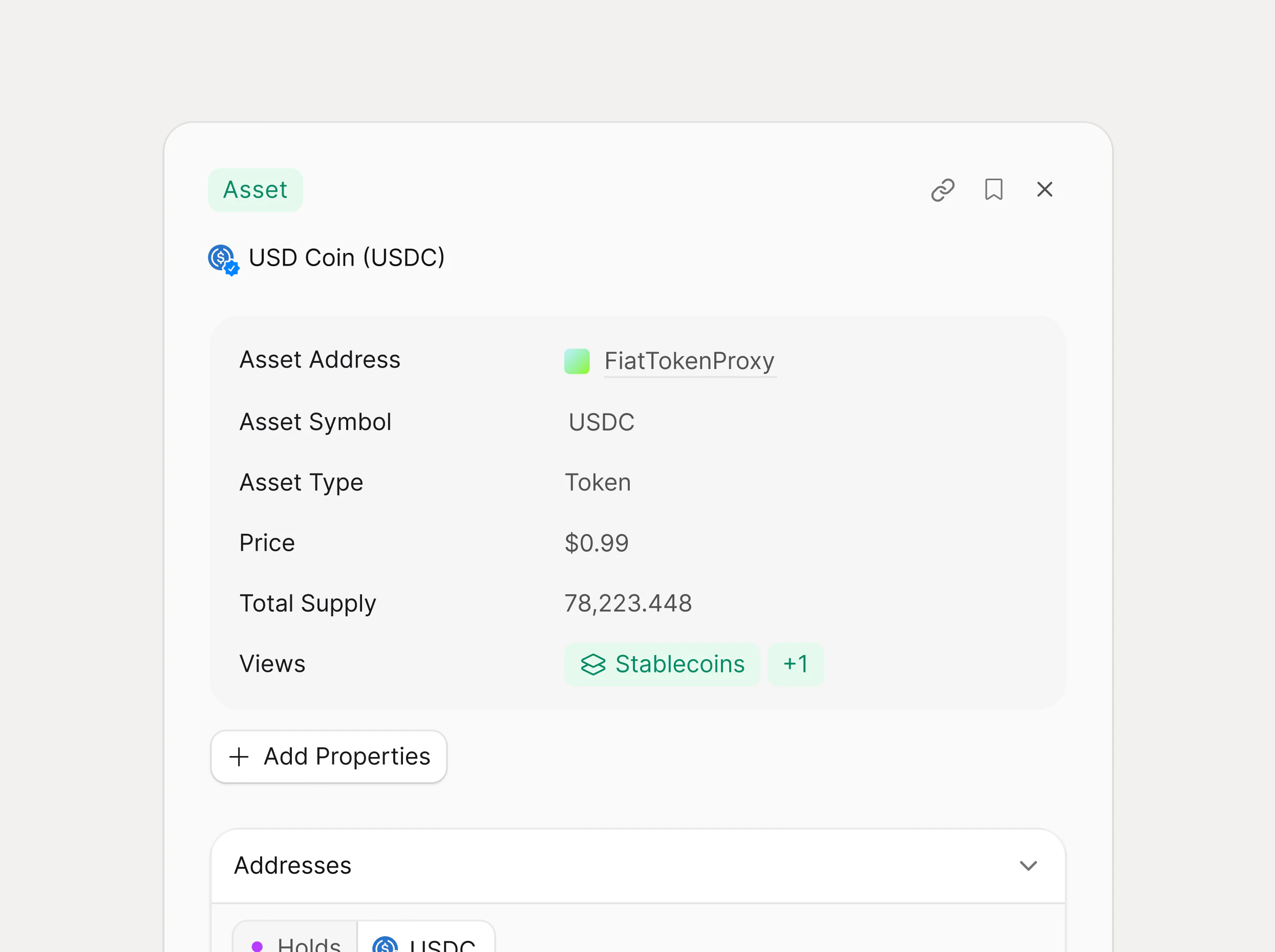
Header and primary metadata
The header surfaces the asset name (for example, “USD Coin (USDC)”), the asset type (Token vs. other asset classes). Core metadata includes:- Asset Address
- Asset Symbol and Type: symbol (USDC) and high‑level asset type (Token, NFT collection, etc.) used across Rover tables and filters.
- Price and Total Supply: latest tracked price in USD and the current total supply of the token
Addresses section
The Addresses section lists wallets and contracts that currently hold the token, giving quick answers to “who owns this asset?” It is organized into an address table with columns for Address, Label, and Balance, plus an aggregate TOTAL row at the bottom representing the sum of balances in the current view. Each row shows the address with a hover copy action, its workspace label (for example, “+ Custom” for user‑defined labels), and the current token balance formatted with thousands separators. The “Expand” control opens the table in the full-screen view.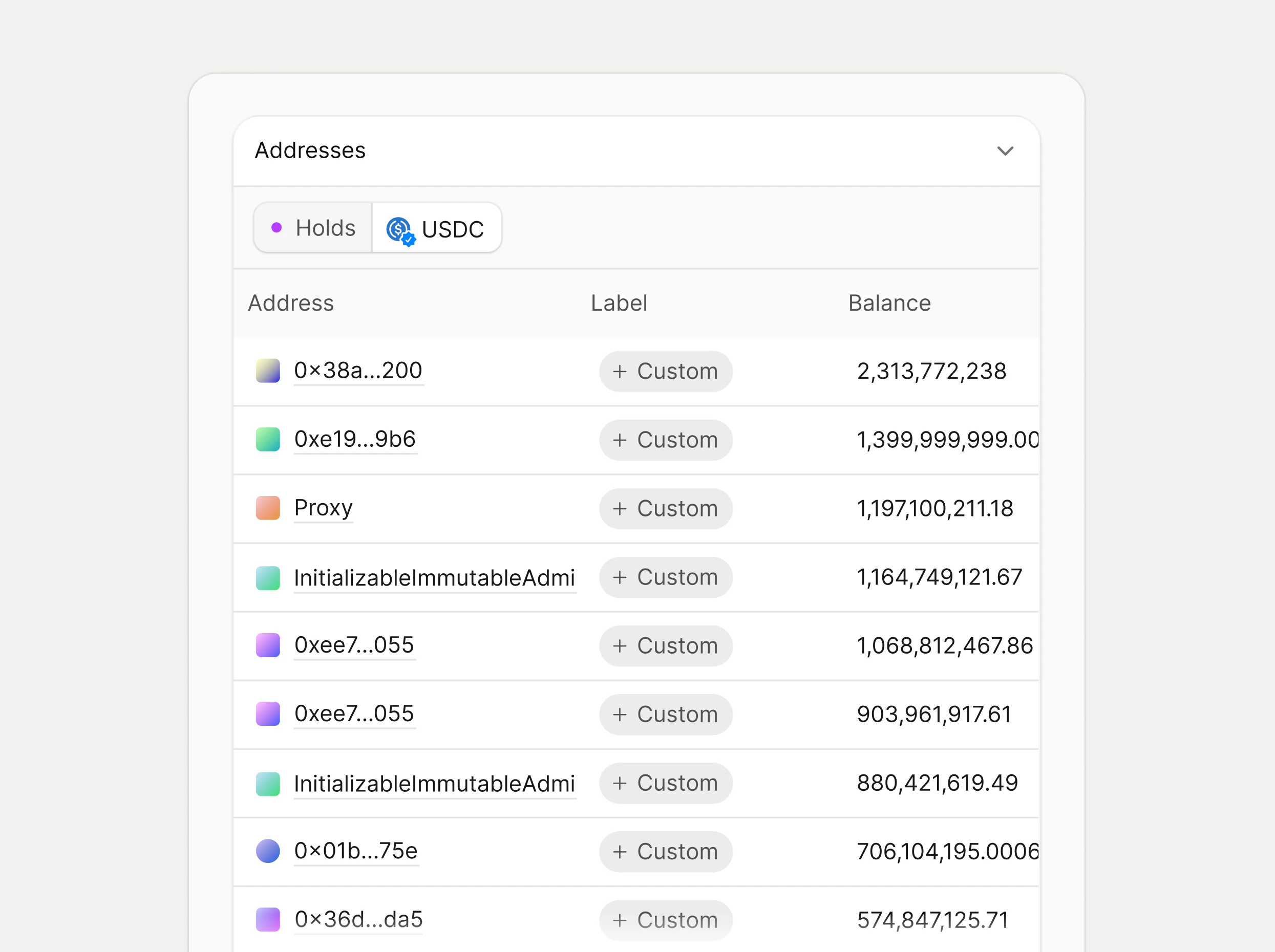
Address labels and customization
Labels in the Addresses table work like tags. They can be created inline, edited, and reused across the workspace. Creating or editing a label here updates the label everywhere that address appears, allowing teams to maintain a single source of truth for counterparties such as exchanges, internal wallets, and contracts.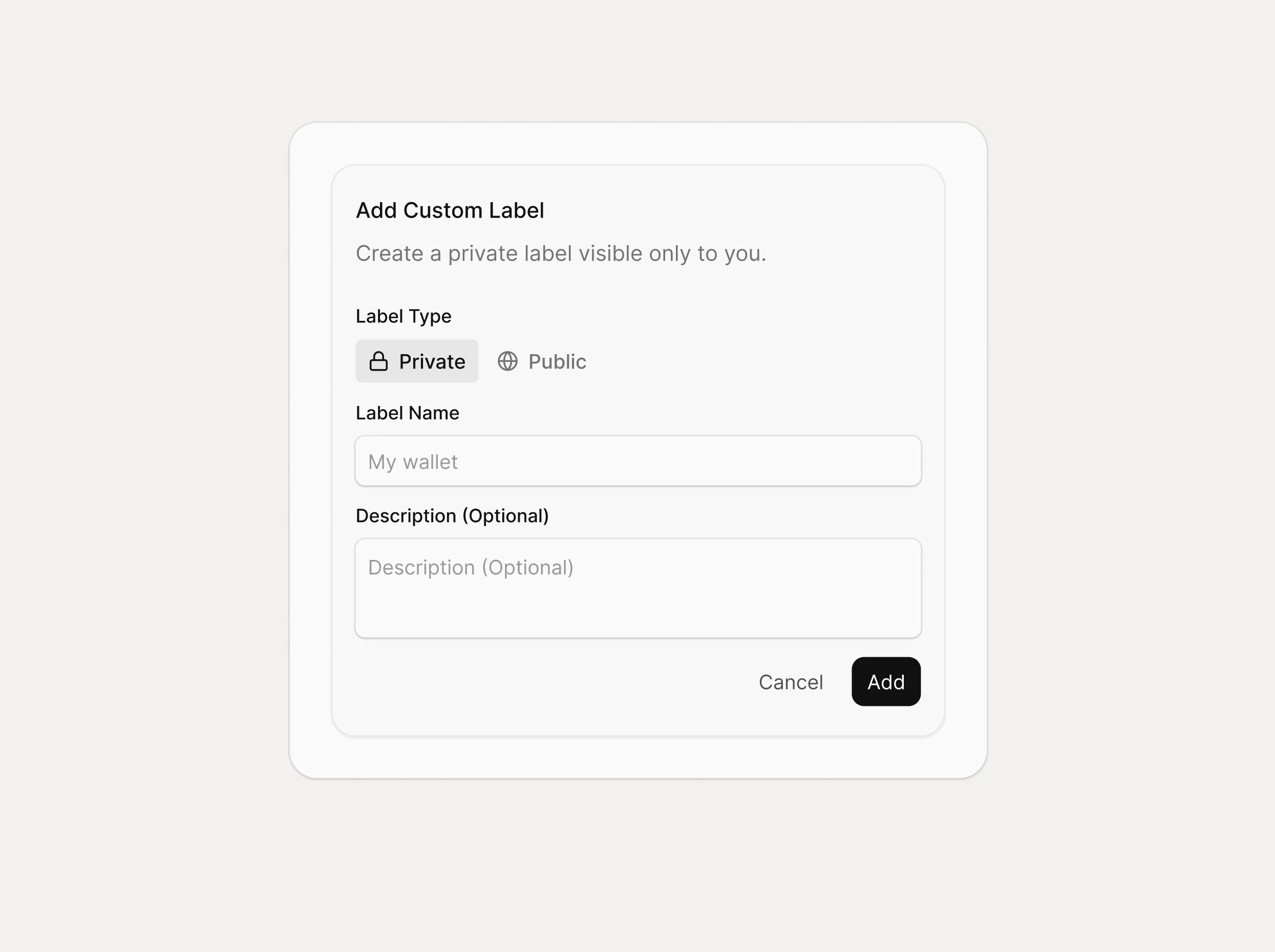
Transactions section
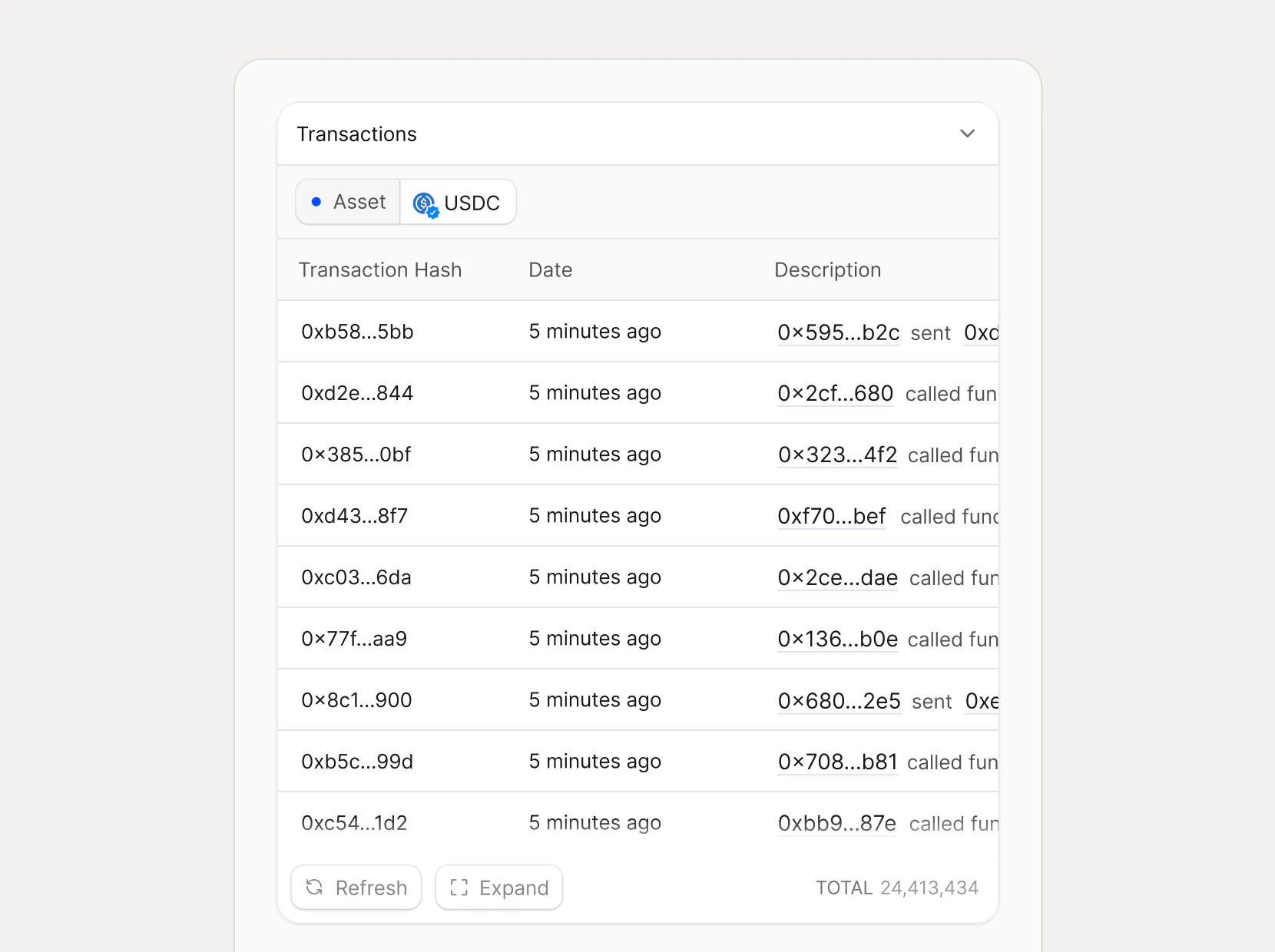
The Transactions section shows the most recent on‑chain activity involving this asset, scoped to transfers and contract interactions. The table includes the following columns:- Transaction Hash
- Date
- Description: a short, human‑readable summary such as “0x… called function …” that is generated from decoded calldata and log events, similar to how other Rover detail pages summarize on‑chain calls.
NFT Detail Page purpose
This page answers “what is this NFT, what collection is it from, and what has happened to it on chain?” for any supported token ID. It follows the same interaction patterns as other Rover detail pages.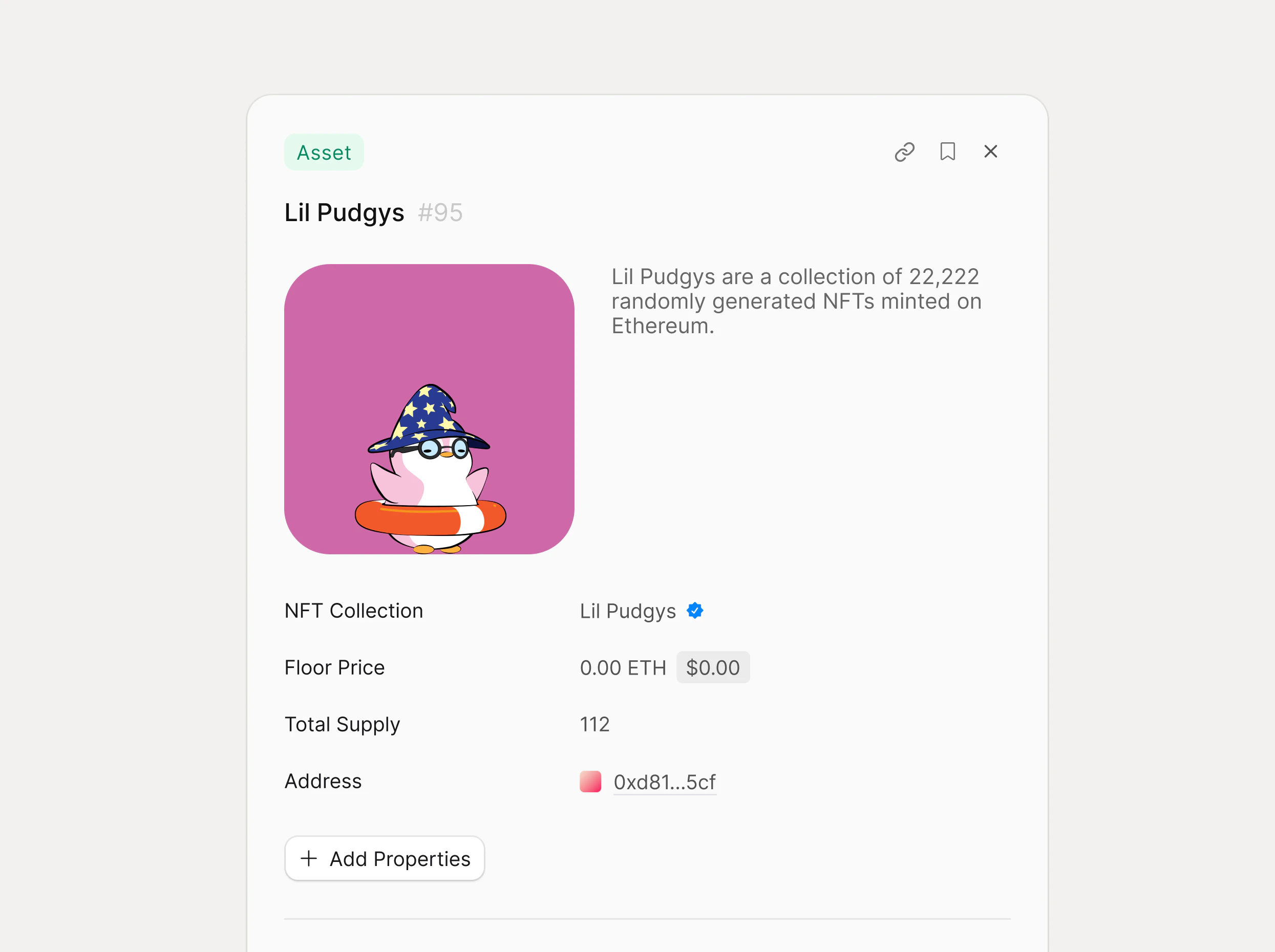
Header and core metadata
The header shows the NFT media on the left and a short collection description on the right so users can quickly recognize the asset and understand its context. Primary metadata includes:- NFT Collection: the parent collection name (for example, “LilPudgys”) with verification status when applicable.
- Floor Price and Total Supply: the current collection floor price in the native chain currency and the total number of tokens in the collection.
- Address: the collection contract address, displayed in shortened form with a quick‑copy action and link to the collection or contract detail view.
Properties and custom fields
Below the main metadata, “Add Properties” lets workspaces attach additional structured data to the NFT, similar to custom fields for issues or projects in Linear. These properties are workspace‑scoped and can be reused in filters, views, and automations wherever the NFT appears in Rover.Attributes section
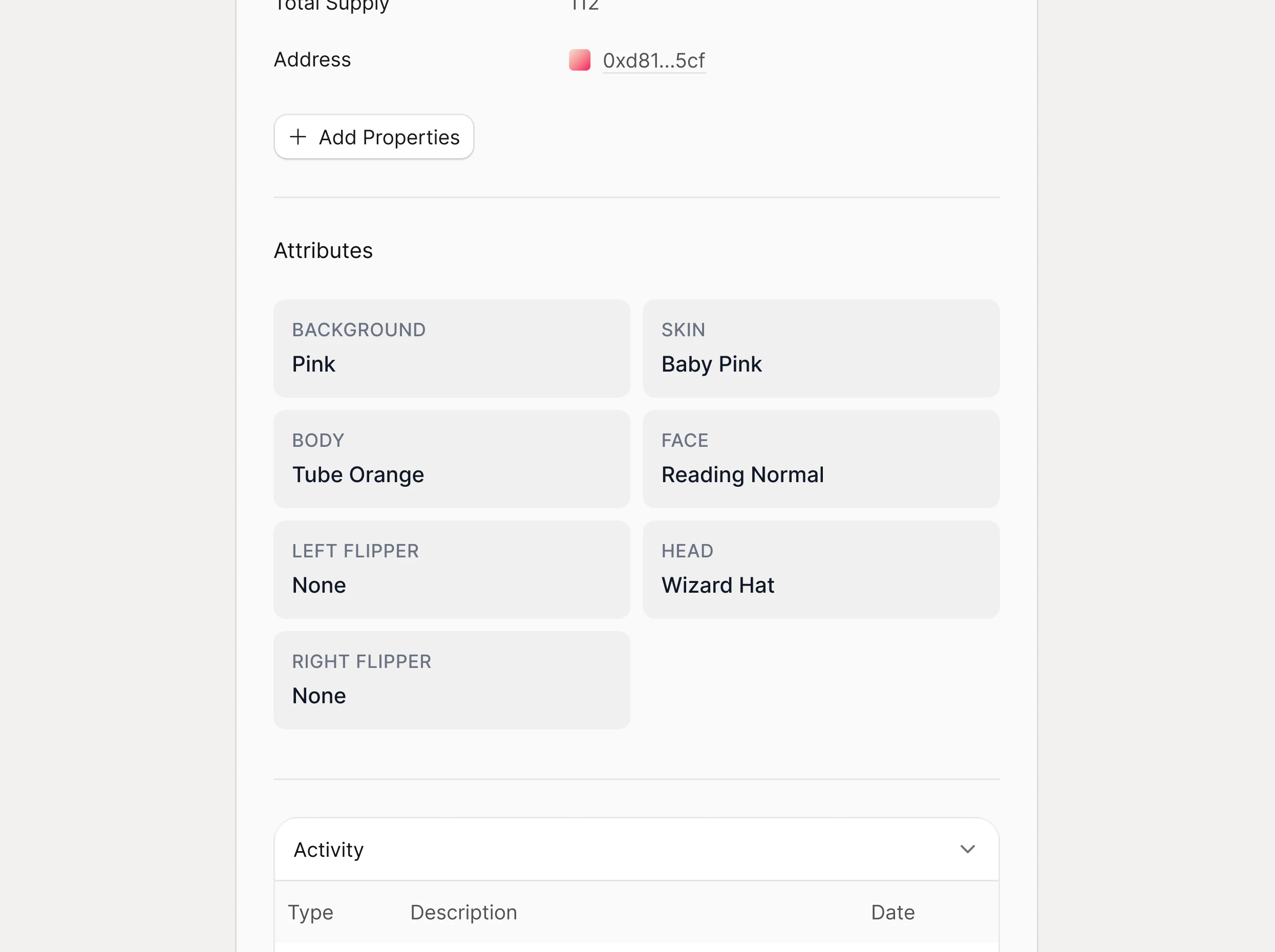
The Attributes section surfaces the NFT’s trait data, for example,BACKGROUND → Mint, HEAD → Beanie Gray, enabling fast visual scanning and comparison across tokens in the same collection.
Activity section
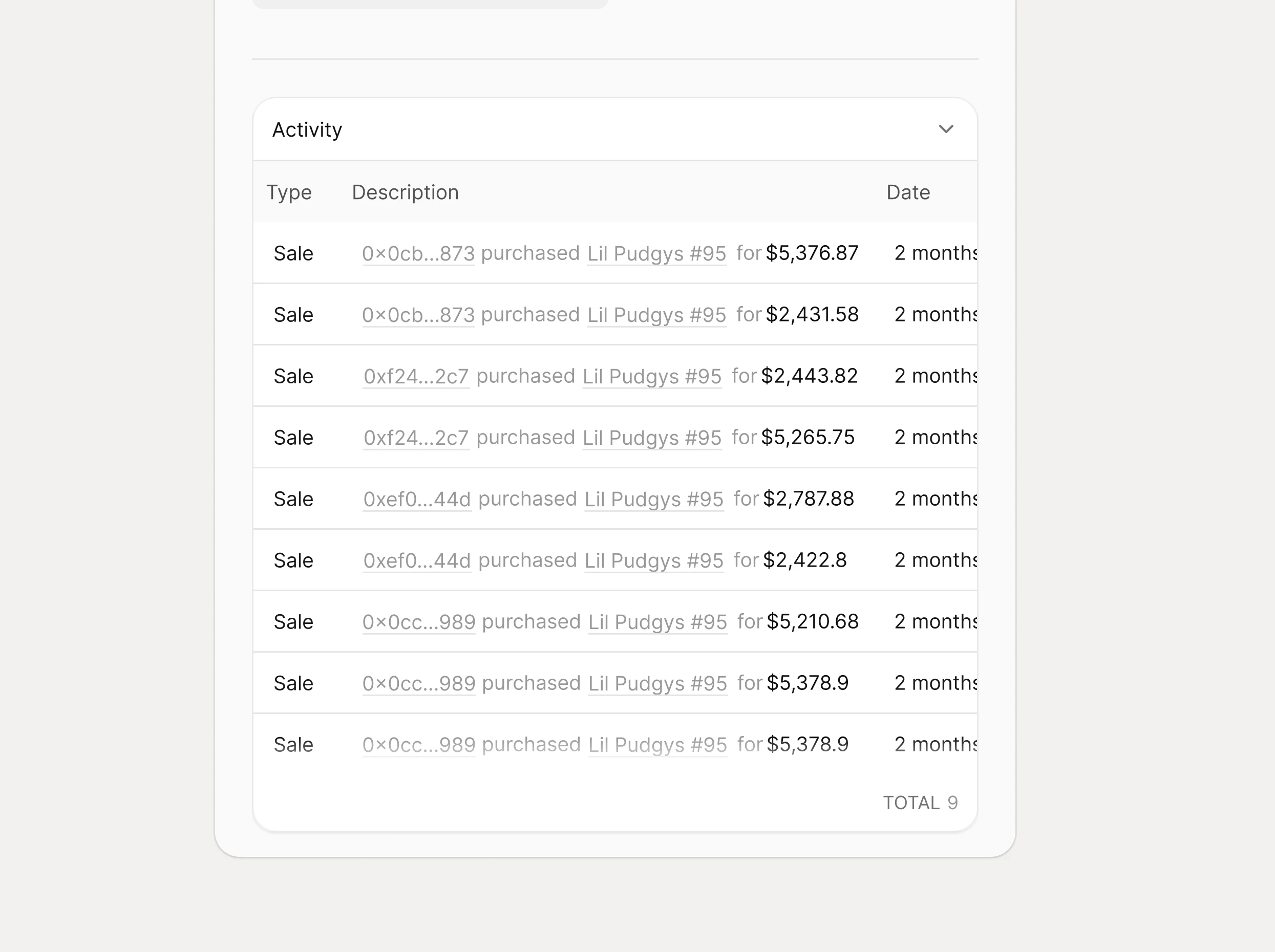
The Activity section lists the most recent on‑chain events involving this specific NFT, such as sales, transfers, or mints. The table includes:- Type: high‑level event type (for example, Sale, Transfer, Mint) derived from decoded logs.
- Description: a human‑readable summary, such as “0x540…2f5 purchased from 0x0db…5af,” including links to buyer and seller address detail pages.
-
Date